Shadowrocket Getting Started
Start with the details you already have, then add them, choose a mode, connect, and verify the result. Get one connection working before changing rules or automatic connection settings.
The images below are official App Store screenshots to help identify screens and fields. Available options vary by protocol and app interface. Enter your own details; don't copy the examples shown in the screenshots. Subscription URLs, passwords, and configuration files may contain access credentials—don't share them publicly.
Add Server / Subscribe: Add Existing Details
A subscription URL and the details for a single server are two different input types. Choose the option that matches what you have; you don't need to use both.
Have a Subscription URL? Choose Subscribe
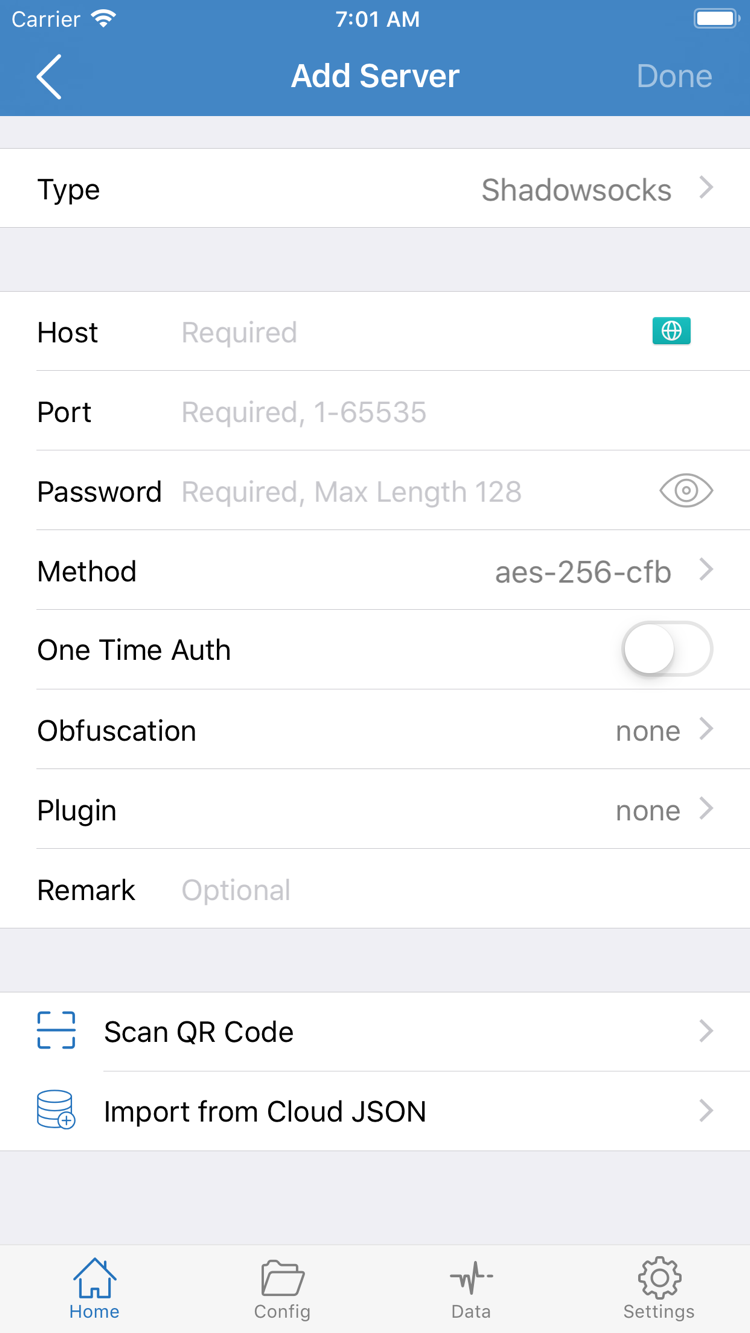
Open Home in Shadowrocket, find Add Server in the SERVER group, and open the add screen. Tap Type, select Subscribe, and enter your full subscription URL in the URL field. Before saving, check the protocol prefix, path, and query parameters. Make sure you haven't copied any explanatory text, line breaks, or leading or trailing spaces. A remark is just a label; it can't replace the URL.
After saving, return to Home and wait for the subscription to load. Once the details are retrieved, you should see a subscription group and its server entries in the list. If you see only the subscription name and no selectable entries, the import isn't complete. First check that the URL is still valid, then use the update option provided for that subscription. Updating retrieves the latest remote content; it doesn't back up local changes. For your first setup, leave the existing settings unchanged.
Have Server Details? Enter Each Field for Its Type
If you have the address, port, and authentication details for a single server, select the matching protocol under Type in Add Server, then enter Host, Port, and the fields required by that protocol. The Shadowsocks Method, Trojan TLS settings, and WireGuard keys aren't interchangeable. The available fields change with Type. If required details are missing, check with your service provider rather than guessing.
Host is usually the domain or address specified in your details; enter the matching port in Port. Preserve the exact capitalization and special characters in Password. If your details include SNI, a transport method, or a path, enter each one in the corresponding field for the selected protocol. Don't use a webpage URL as the server address. After saving and returning to Home, check the remark and type so you can tell this entry apart from existing ones.
Have a QR Code? Use Scan QR Code
If your details are provided as a QR code, choose Scan QR Code in Add Server and allow camera access when prompted. After scanning, check Type, the address, and the port before saving. A QR code contains specific connection details; you can't infer server settings from an ordinary image on a webpage. Import from Cloud JSON is a separate import option—don't enter a subscription URL there.
Global Routing: Choose a Connection Mode
The three modes are Config, Proxy, and Direct. A mode determines how requests are routed; it doesn't fill in or fix server details.
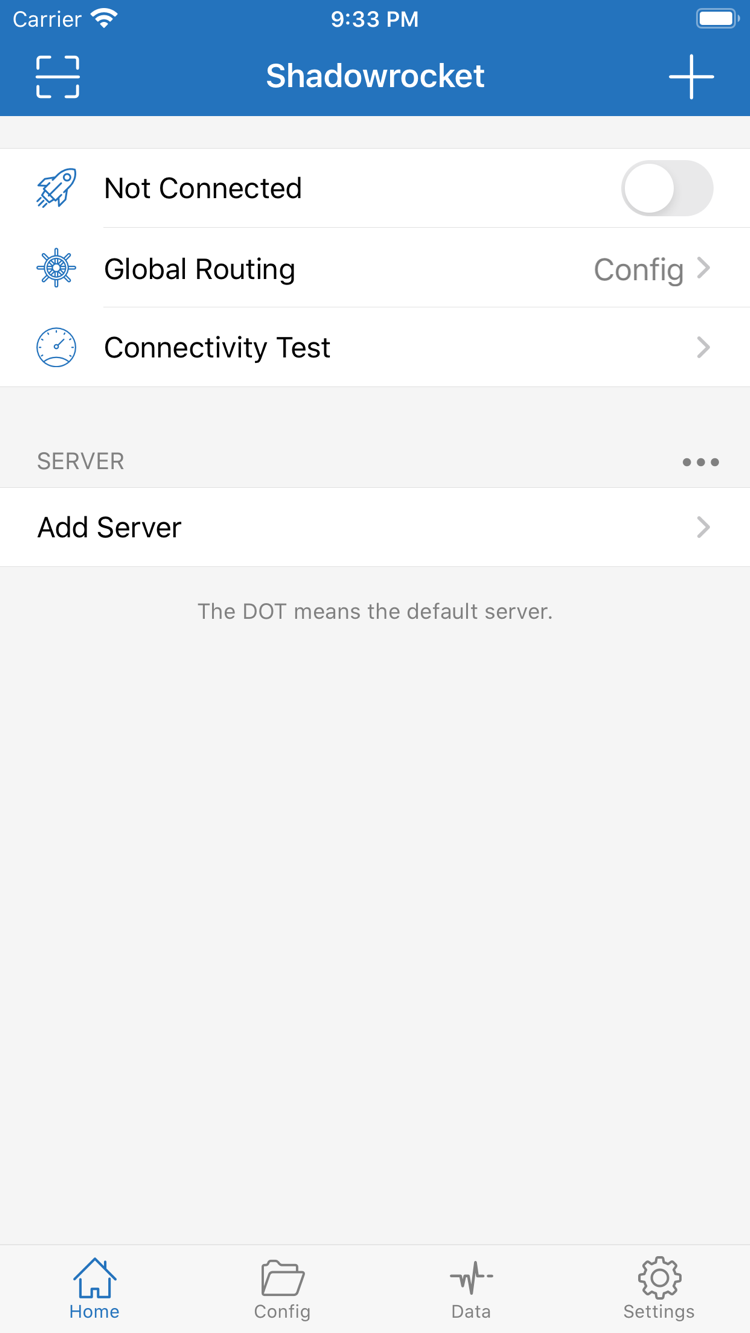
Return to Home and open Global Routing to see the current selection. For rule-based routing in everyday use, select Config. To temporarily check the proxy route, select Proxy. To send requests directly, select Direct. After choosing a mode, return to Home and confirm the Global Routing row shows your selection before connecting.
Config: Check the Active Configuration File First
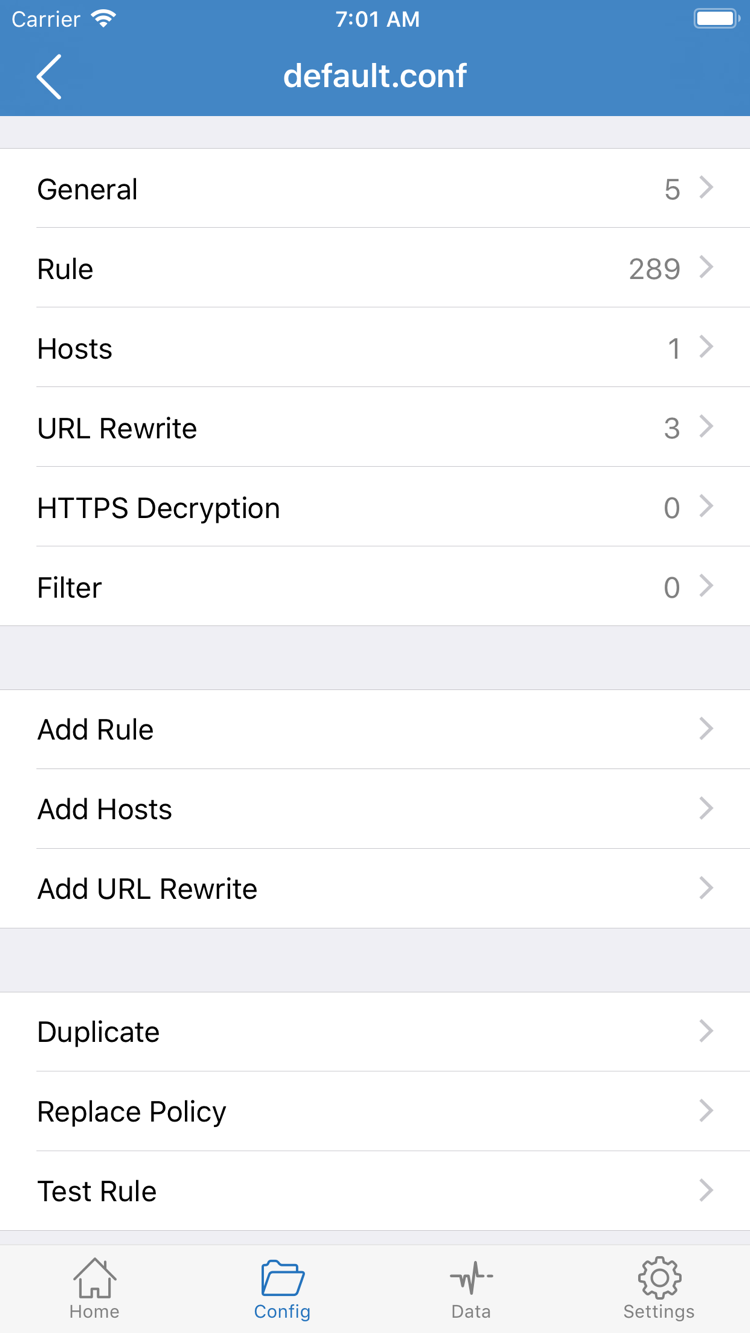
Config uses the rules in the active configuration to decide how requests are handled. Open the Config tab at the bottom and confirm which configuration file is active. To inspect it, open the file's edit view and look for sections such as General, Rule, and Hosts. You don't need to edit every section for your first setup; start by checking whether Rule matches your expectations. If you're using an existing configuration, read its instructions instead of combining rules from multiple sources.
The example below explains rule behavior; you don't need to paste it in for your first connection. DOMAIN-SUFFIX matches a domain suffix and applies the specified policy. FINAL is the fallback when none of the preceding rules match. example.com isn't a usable server address, and PROXY isn't a subscription name. Keep a copy of the original file before making changes. Otherwise, if you change rules, DNS, and connection settings at once, it will be hard to tell what caused the result.
DOMAIN-SUFFIX,example.com,PROXY
FINAL,DIRECT
Proxy and Direct: Understand the Difference
Proxy sends requests through the proxy route. It can help distinguish a server connection issue from a rule-matching issue during a brief test. Direct uses a direct route, so an active connection switch doesn't mean a site is being accessed through the server. Make your choice based on the active configuration and app settings; don't treat one mode as a universal fix.
If a page works after temporarily switching to Proxy but fails again with Config, check the configuration and rule order instead of importing the same subscription again. For more on rules, see Feature Guide. For system-level troubleshooting, read the Troubleshooting Manual. Once you've confirmed the mode, turn on the connection.
Home: Select a Server, Then Turn On the Switch
Seeing an entry in the list doesn't mean it's selected. Turning on the switch doesn't mean every site has been verified.
Return to Home and select the server you want to use in the SERVER group. Confirm a selection dot appears beside it, then check that Global Routing is still set to the mode you chose earlier. Opening an entry's edit screen to view its details and then returning doesn't select it as the default server. If you have multiple groups, make sure the dot is beside the intended entry.
Next, turn on the switch at the top of Home. When disconnected, the top of the screen shows Not Connected; watch for a status change as the connection starts. The first time you connect, the system may ask whether Shadowrocket can add a VPN configuration. Read the app name and prompt, confirm it was triggered by this action, then allow it and complete any device verification required by the system. This lets the app create a network connection configuration; it isn't another purchase.
After granting permission, return to Shadowrocket and check that the switch stays on and the top of the screen no longer shows Not Connected. If the switch turns off right away, check the error shown in the app instead of tapping repeatedly. If you previously denied permission, try connecting again and respond to the system prompt. Device management or system restrictions may also affect configuration setup, so check what actions are allowed on your device.
For your first verification, don't test with another VPN connection active, and don't enable On Demand just yet. Use the manual switch to establish a repeatable process: select the same server, stay on the same network, turn on the connection, and check the result. The VPN icon in the status bar only indicates a system VPN connection state; it doesn't confirm that a specific domain is using the expected policy.
Connectivity Test: Check the Connection and Access Separately
Check in this order: test result → actual access → routing rules. A successful test doesn't mean every site or type of request will work.
On Home, run Connectivity Test first and wait for the result. The test provides a connectivity indication, and its result depends on the test method, target, and current network. If it times out, note which server and network you were using. If it returns a response, don't use the displayed number alone to judge sustained speed. Compare whether the test completes under the same conditions, rather than aiming for a particular number.
Then open a browser and visit a known working page that's suitable for your current network. Load a regular webpage first, then try the site you wanted to check. If the browser is still showing an old page, reload it or open a new tab so cached content isn't mistaken for proof that the connection is working. Keep the same server selected during testing so you can compare the result with the previous step.
With Config selected, also check whether the request is supposed to use PROXY. Rules are matched from top to bottom. If the target matches DIRECT, loading the page doesn't confirm that the proxy route works. Conversely, one page failing doesn't prove that the entire server is down. You can briefly switch to Proxy and test again while keeping the original configuration intact. Restore the previous mode afterward and record both results.
If regular pages load but one site doesn't, first check the rule for that site, DNS resolution, and the site's own status. If no pages load, turn off the connection switch and check your original network. If that network also has no access, restore it first, then return to this tutorial. For help distinguishing these cases, see Frequently Asked Questions and the Symptom-Based Troubleshooting Manual.
Settings: Check Each Stage of the Failure
Keep your current details and change one thing at a time. First identify whether the failure occurs during import, authorization, connectivity, or rule handling.
Import Failed or Subscription List Is Empty
Go back to the add-details step and check that Type matches what you entered. Subscribe requires a complete subscription URL; a single server requires the fields for its protocol. Don't mix the two. If a subscription won't update, check whether the URL has expired, whether your current network can reach it, and whether the provider requires an additional step. Avoid creating multiple subscriptions with the same name, or you may lose track of which group a selected server belongs to.
Switch Won't Stay On or Nothing Loads After Connecting
If the switch won't stay on, first check system permission to create a VPN configuration, then review the error in the app. If the switch stays on but nothing loads, check that you've selected the right server and that Host, Port, Password, and protocol-specific fields match your original details. Temporarily turn off the connection and confirm that your regular network works. Once it does, reconnect and repeat the same test to see whether the issue follows the server settings.
Connectivity Test Times Out or Results Differ
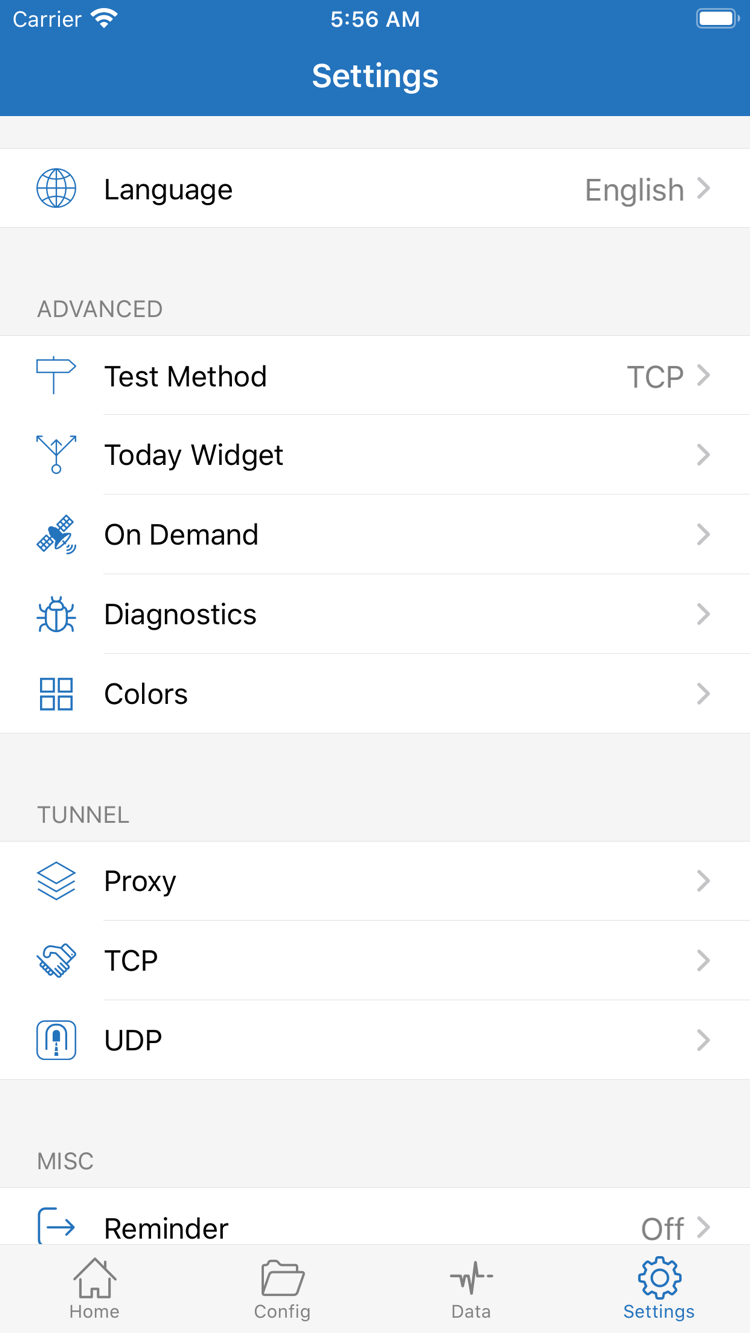
In Settings, check Test Method to see which test is being used. Different methods test different conditions, so their results aren't directly comparable. If you change the method, note the settings before and after, then test the same server again. Don't change the port, DNS, and test method at the same time. To compare Wi-Fi and cellular, change only the network and leave the other conditions unchanged.
Connection Changes Automatically or a Specific Site Fails
Check On Demand in Settings. When enabled, its connection conditions can affect when a connection starts automatically. For initial troubleshooting, pause automatic connections and reproduce the issue with the manual switch; restore the setting afterward if needed. If only one site is affected, check Rule in Config and the current Global Routing mode. Don't change all Proxy, TCP, or UDP options to address a single site.
For more detailed troubleshooting, open Diagnostics in Settings. When documenting an issue, include the current mode, selected server, network type, whether the test timed out, and what happened when you tried to access the site. This is more useful than simply saying “it won't connect.” Before sharing diagnostic information, hide your subscription URL, authentication details, and other personal information. Don't publish your full configuration file. For longer troubleshooting steps involving DNS, battery use, or issues after an update, see the Troubleshooting Manual for the relevant symptoms.
You've completed the basic setup, from importing details to verifying the connection. For quick answers about purchases, authorization, and managing your details, see Frequently Asked Questions. To learn when each feature is useful, continue to the Feature Guide.